
Quick Summary
- 1.VPN settings: Settings → Connections → More connection settings → VPN
- 2.Set SafePassVpn's battery to Unrestricted and add it to Never auto sleeping apps
- 3.Turn on Always-on VPN so the connection comes back after a restart
- 4.Turn off Secure Wi-Fi if your Galaxy has it; Android runs one VPN at a time
VPN on Android › Samsung Galaxy
Set Up SafePassVpn
Getting connected takes about a minute, and the free plan doesn't need an account:
- Install SafePassVpn from the Google Play Store
- Open the app and tap the large power button
- Android asks for permission to set up a VPN connection the first time. Tap OK
- The app shows Protected, and a key icon appears in the status bar while the VPN is on
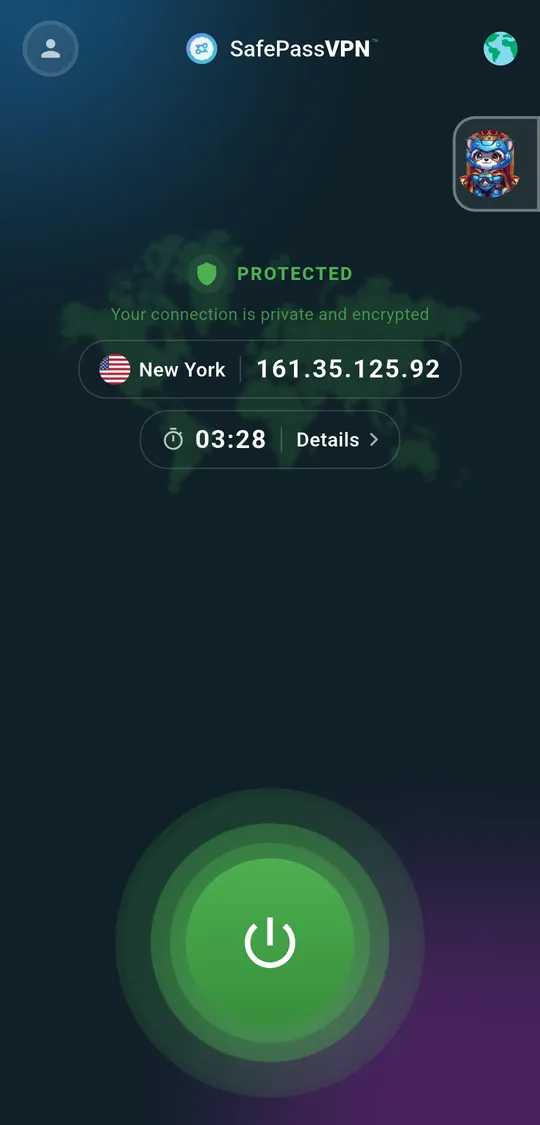
To confirm it's working, compare your address on our IP checker with the VPN off and on. It should change to the VPN server's IP.
Find the VPN Settings on Samsung Galaxy
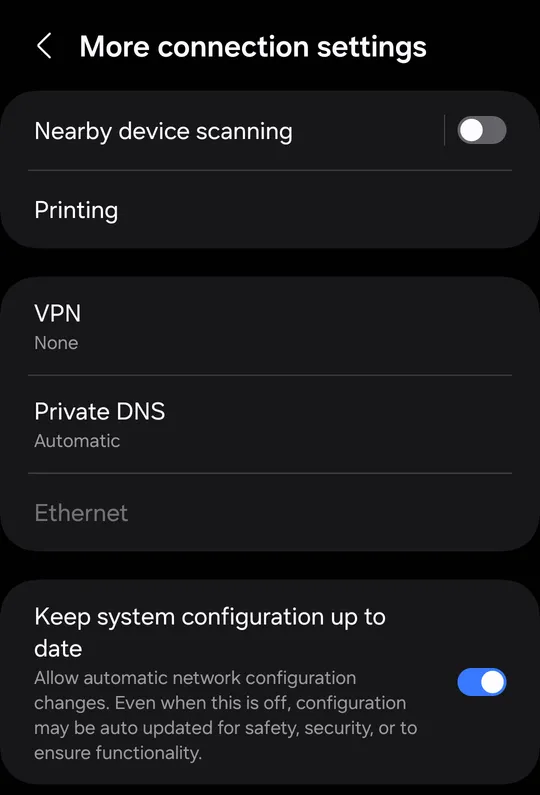
SettingsConnectionsMore connection settingsVPN
This screen lists every VPN app you've connected at least once, plus any VPN profiles you've added by hand. Private DNS is on the same screen, just below VPN. In Settings, SafePassVpn is listed as Safepass Vpn.
Stop the VPN Being Closed in the Background
Most "my VPN keeps disconnecting" problems on Samsung Galaxy phones come from battery saving, not from the VPN. One UI pauses background apps to save power, and a VPN is a background app. These settings tell the phone to leave it running:
1. Set the app's battery use to Unrestricted
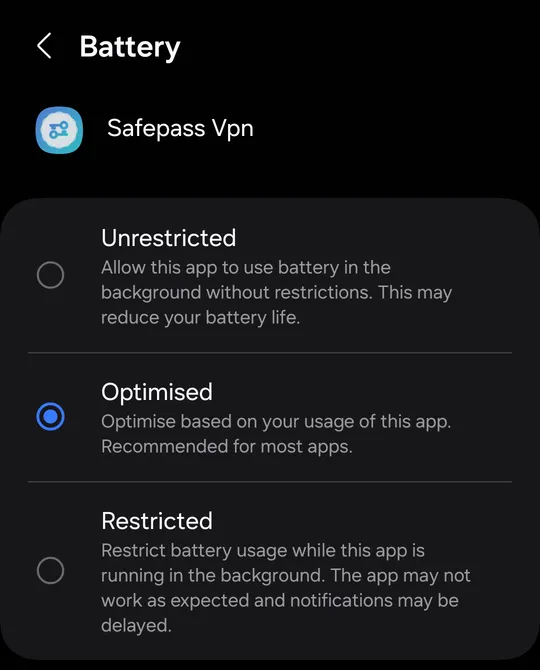
SettingsAppsSafepass VpnBatteryUnrestricted
One UI offers three options: Unrestricted, Optimised and Restricted. Optimised is the default (it was already selected when we installed the app), and it lets One UI limit the app in the background when it decides you aren't using it. Unrestricted tells One UI to leave the VPN alone. The VPN itself uses very little battery while idle.
2. Add it to Never auto sleeping apps
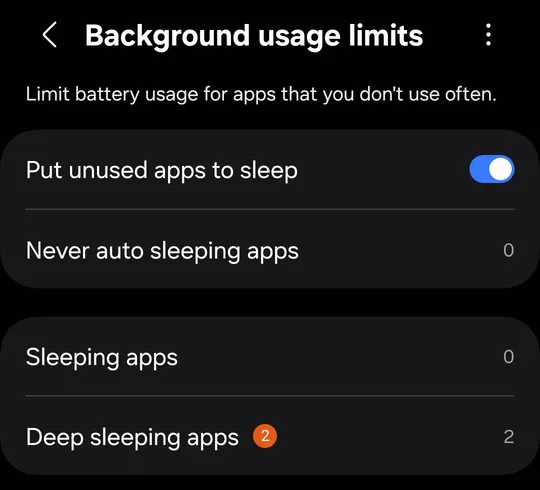
SettingsBatteryBackground usage limitsNever auto sleeping apps
With Put unused apps to sleep turned on (it is by default), One UI moves apps you haven't opened for a while into Sleeping apps, then Deep sleeping apps, where they can't run in the background at all. Open Never auto sleeping apps, tap + (Add apps) at the top, select Safepass Vpn and tap Add. Then check it isn't listed under Sleeping apps or Deep sleeping apps.
3. Allow background data
SettingsAppsSafepass VpnMobile data
Make sure Allow background data usage is on. If you use Data saver, also turn on Allow data usage while Data saver is on, otherwise the VPN can lose its connection on mobile data whenever the screen is off.
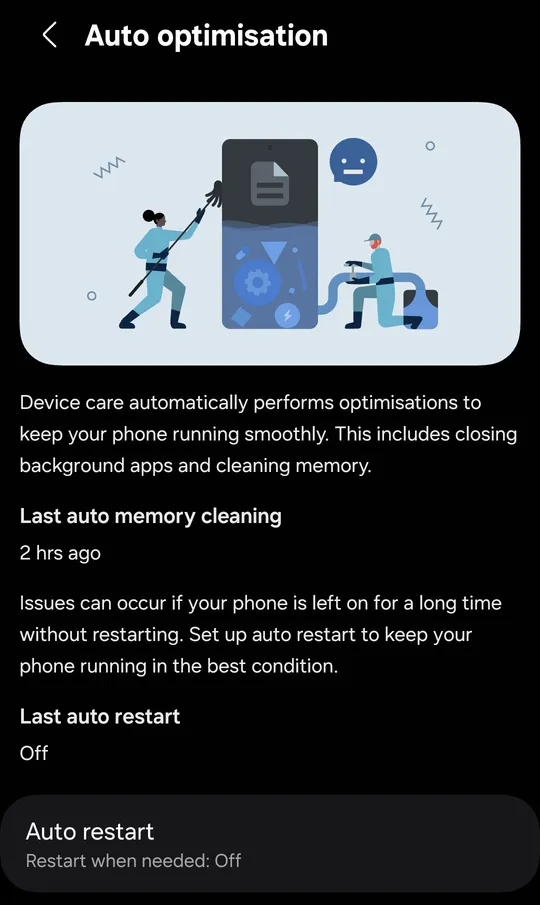
4. Know what Device care does
SettingsDevice careAuto optimisation
Device care closes background apps and cleans memory automatically, and can restart the phone on a schedule with Auto restart. Once the steps above are done, the VPN is exempt from the memory cleaning. A restart still ends every connection, so if you use Auto restart, turn on Always-on VPN (next section) so the VPN reconnects by itself.
Turn On Always-on VPN
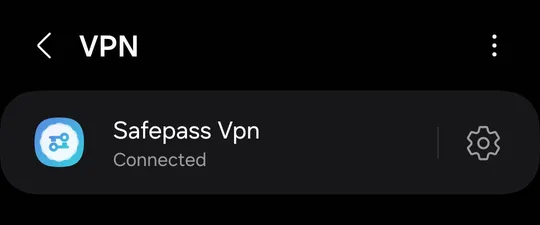
Always-on VPN is built into Android. It starts the VPN as soon as the phone boots and reconnects it when you switch between Wi-Fi and mobile data. Connect SafePassVpn once, then:
SettingsConnectionsMore connection settingsVPN⚙ next to Safepass Vpn
- Turn on Always-on VPN
- Optionally turn on Block connections without VPN, so nothing goes out unprotected while the VPN reconnects. It stays greyed out until Always-on VPN is on
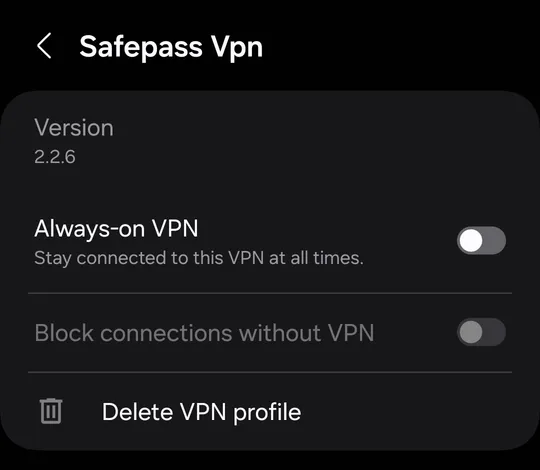
Block connections without VPN works like a system-wide kill switch, and it's available on the free plan. With it on, apps have no internet at all if the VPN can't connect, so turn it off if you need to sign in to a hotel or airport Wi-Fi page first.
Common Samsung Galaxy VPN Problems
Secure Wi-Fi is switched on
Many Galaxy phones include Secure Wi-Fi, Samsung's own Wi-Fi protection service, which is itself a VPN. Android only lets one VPN be active at a time, so if Secure Wi-Fi turns on when you join a public network, it replaces SafePassVpn. Search for Secure Wi-Fi in Settings and turn off its automatic protection while you use SafePassVpn. Not every Galaxy has it: our Galaxy F13 doesn't.
Apps in Secure Folder aren't using the VPN
Secure Folder is a separate profile on your phone, with its own copy of each app. A VPN connected in your main profile doesn't cover apps inside Secure Folder. If you need them on the VPN too, install and connect SafePassVpn inside Secure Folder as well.
The VPN disconnects in Power saving mode
Power saving limits background activity and network use for apps that aren't exempt. If the VPN drops only when Power saving is on, recheck that SafePassVpn is set to Unrestricted and is in Never auto sleeping apps.
Sites won't load only while connected
If you set Private DNS to a custom provider, it can clash with the VPN's own DNS on some networks. Set Private DNS back to Automatic (Settings → Connections → More connection settings → Private DNS) and reconnect. SafePassVpn already sends DNS through the encrypted tunnel.
More causes and fixes: VPN keeps disconnecting on Android. Still having trouble? Run our WebRTC leak test to check your browser isn't exposing your real IP, or contact us from the help center.
Choose Which Apps Use the VPN
Some apps, like banking apps or games, can work better on your normal connection. With Premium, SafePassVpn's Split tunnel setting lets you pick which apps go through the VPN and which connect directly, so you can leave the VPN on all day. Read more in our split tunneling guide, or compare plans.
How We Tested
Every path and screenshot in this guide comes from a Samsung Galaxy F13 (SM-E135F) running One UI 6.1, Android 14, checked in October 2026. Menu names can differ slightly between models, regions and carrier versions; if a setting isn't where we say, use the search box at the top of Settings. New to VPNs? Start with what a VPN is and how it works.
VPN on Samsung Galaxy: FAQs
Short answers for Samsung Galaxy owners.
Get SafePassVpn on your Samsung Galaxy
Free plan with daily data and 3 locations, no sign-up. Premium adds 9+ locations, unlimited data and split tunneling.