
Quick Summary
- 1.Private DNS encrypts DNS lookups with DNS-over-TLS (Android 9 and newer)
- 2.Options: Off, Automatic, or a provider hostname such as one.one.one.one
- 3.Type a hostname, not an IP address like 1.1.1.1
- 4.With a VPN on, Automatic is usually best; a hostname can override the VPN's DNS
VPN on Android › Private DNS
What Private DNS Does
Every time an app or website loads, your phone first asks a DNS server for the address behind a name like example.com. Normally that question is sent unencrypted, so your Wi-Fi network or mobile provider can see every site name you look up.
Private DNS, added in Android 9, sends those lookups over an encrypted connection (DNS-over-TLS) instead. It has three settings:
- Off: lookups go unencrypted to whatever DNS server the network gives you
- Automatic: the phone uses encryption when the network's DNS server supports it, and falls back to plain DNS when it doesn't
- Private DNS provider hostname: every lookup goes encrypted to the provider you choose, and fails rather than falling back
How to Turn On Private DNS
The setting has a different home on each brand:
Pixel and phones close to stock Android
SettingsNetwork & internetPrivate DNS
Samsung Galaxy (One UI)
SettingsConnectionsMore connection settingsPrivate DNS
Vivo (Funtouch OS)
SettingsOther networks and connectionsPrivate DNS
On stock Android, Private DNS opens a small dialog with the three settings. In the Network & internet list, Automatic shows as On.
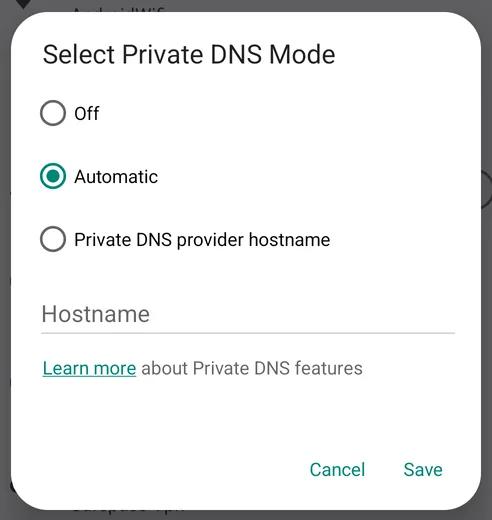
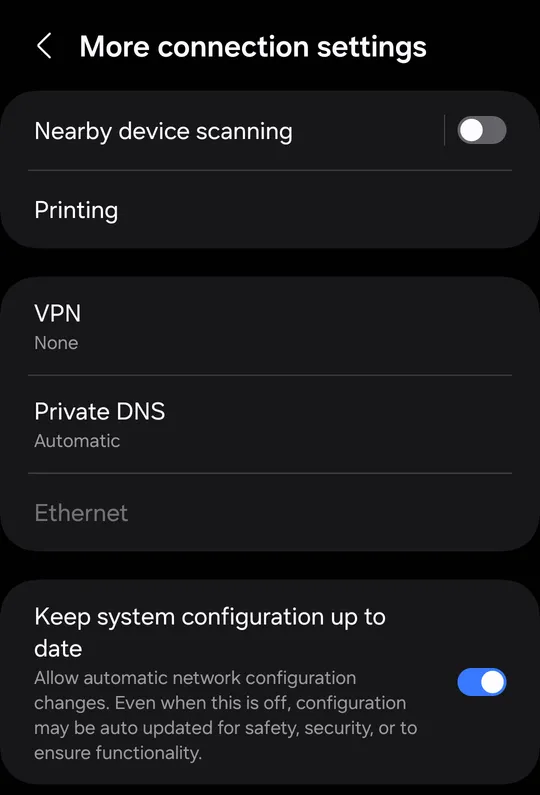
Choose Private DNS provider hostname, type the hostname from the table below, and tap Save. If your phone isn't listed, open Settings, tap the search box and type Private DNS.
Which Private DNS Hostname to Use
| Provider | Hostname | Good for |
|---|---|---|
| Cloudflare | one.one.one.one | Fast, no filtering. Says it doesn't keep logs that identify you. |
| dns.google | Fast and reliable, no filtering. | |
| Quad9 | dns.quad9.net | Skips domains known to spread malware or phishing. |
| AdGuard | dns.adguard-dns.com | Filters ads and trackers inside apps and browsers. |
| Cloudflare for Families | family.cloudflare-dns.com | Filters malware and adult content. |
Type the hostname exactly as shown. The box doesn't accept IP addresses like 1.1.1.1 or 8.8.8.8. Not sure which DNS server your phone uses right now? Our DNS servers page compares public DNS services, and the DNS leak test shows which servers are answering your lookups.
Private DNS and a VPN
Private DNS hides the names you look up, but not where you go next. Your provider still sees the addresses your phone connects to, and websites still see your real IP address. A VPN encrypts all of that traffic and sends it through the VPN server, DNS included.
When a VPN is on, keep Private DNS on Automatic. That lets the VPN answer your lookups inside its encrypted tunnel. A provider hostname takes priority over the VPN's DNS on most phones. Your lookups still travel inside the tunnel, so your network can't read them, but they go to that provider rather than the VPN, and on some networks the two clash and pages stop loading.
That's also why a DNS leak test can show Cloudflare or Google servers while you're connected to a VPN. If you've set a hostname on purpose, that's expected; if you haven't, set Private DNS back to Automatic and test again.
Fixing Private DNS Problems
"Private DNS server cannot be accessed"
Check the hostname for typos first. If it's right, the network you're on doesn't allow encrypted DNS on port 853. Some workplace, school and hotel Wi-Fi networks don't. Switch to Automatic while you're on that network.
Hotel or airport Wi-Fi sign-in page won't open
Sign-in pages need the network's own DNS. Set Private DNS to Automatic, sign in, then switch it back.
Websites stop loading when the VPN connects
Set Private DNS to Automatic and reconnect the VPN. If your VPN keeps dropping for other reasons, see why your VPN keeps disconnecting on Android.
Private DNS FAQs
Short answers about Private DNS on Android.
Encrypt More Than Your DNS
SafePassVpn encrypts all of your traffic, DNS included, and hides your IP address. Free plan with daily data and 3 locations, no sign-up.